User Guide — Progress Digest for Jira
For project teams · Updated 9 October 2026
Progress Digest turns a Jira project into an Excel workbook: how many work items are not started, in progress and done, what is past its due date, and what changed since the last report. You press one button; the workbook is attached to a work item in the same project, so it stays inside Jira.
Generate report button is optional.The screenshots on this page come from a test project on a Jira site whose time zone is
UTC, which is why they show Times are shown in Etc/UTC. Your site may show a different
time zone.
1. How it works in one minute
- Open the project's Progress Digest page and press
Generate report. - The app reads the project's work items with your Jira permissions and builds a workbook.
- The workbook is attached to a work item in the project whose summary starts with
[Progress Report]. The app creates that work item the first time and keeps using it. - Each regular report also leaves a small record of the project at that moment. Later reports compare against a record, which is how the workbook can show what changed.
- Optionally, turn on a weekly schedule so a report is made for you and you are emailed when it is done.
- Optionally, use
Report a past periodto compare any two earlier records.
The app runs entirely on Atlassian's platform. Your data does not leave Atlassian, except for the weekly email, which Jira itself sends to the person who scheduled it. Details are in the Privacy and Security Policy.
2. Open the page
Open your project in Jira and look for Progress Digest among the project's apps. Where it appears is decided by Jira, not by the app: it may be a tab across the top of the project, or inside the Apps or More menu.
The first time you open it, Atlassian asks you to allow the app access. This is what lets the app read the project with your own permissions.
The page has four parts, top to bottom:
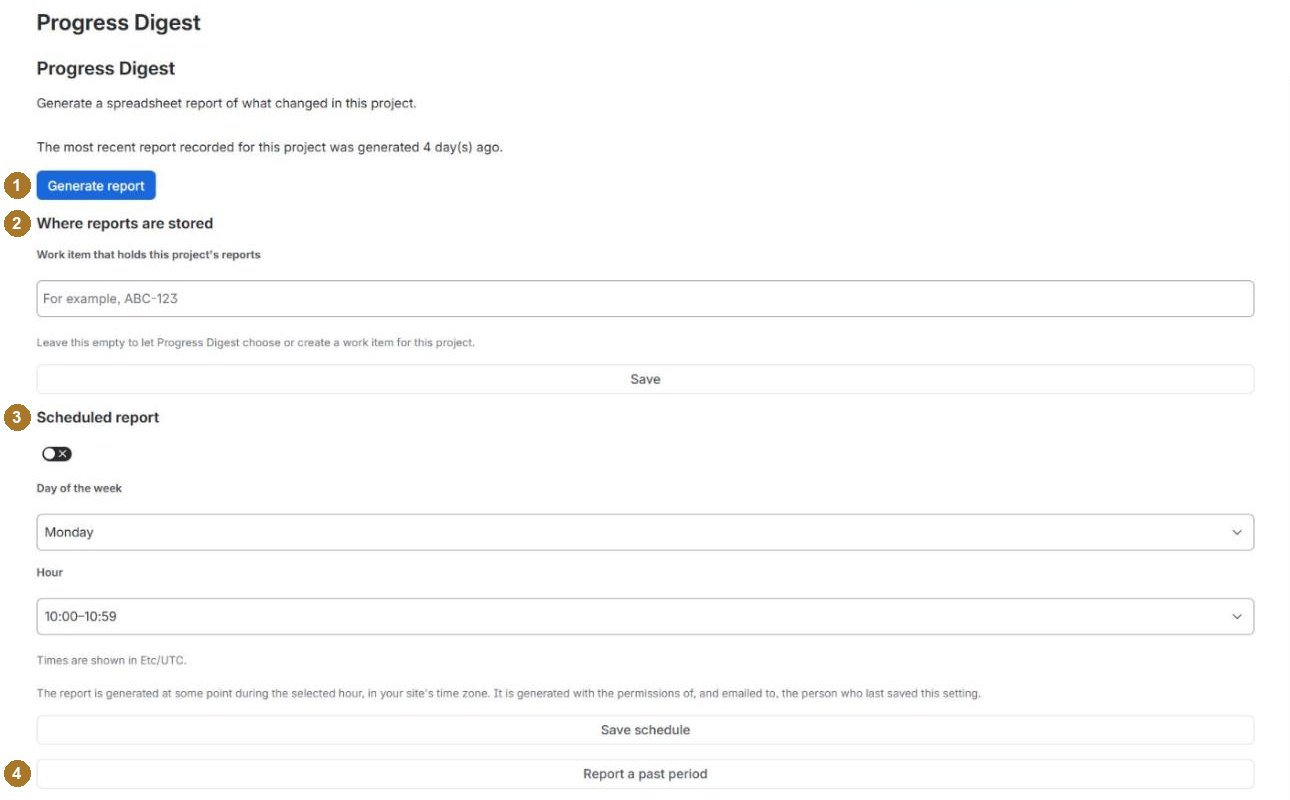
| Part | What it is for | Do you need it? |
|---|---|---|
1Generate report |
Makes a report now. | Yes — this is the app. |
2Where reports are stored |
Chooses which work item the workbooks are attached to. | No. Leave it empty. See section 5. |
3Scheduled report |
Makes a report every week at a time you choose, and emails you. | Only if you want weekly reports without pressing the button. See section 6. |
4Report a past period |
Compares two earlier records instead of "now vs. last time". | Only after at least two reports. See section 7. |
3. Generate a report
Press Generate report. The button shows Working… and a spinner with
Generating the report appears next to it. While the page is waiting, the button cannot be
pressed again. This can take a few minutes for a large project.

When the run is over, a message appears below:
Report generated— with a link,Open ABC-12, to the work item that holds the workbook.- Anything else is explained in section 8.
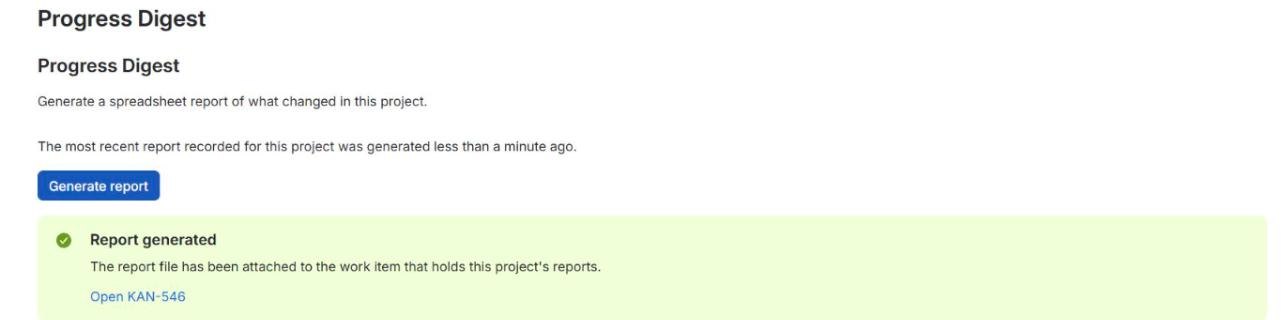
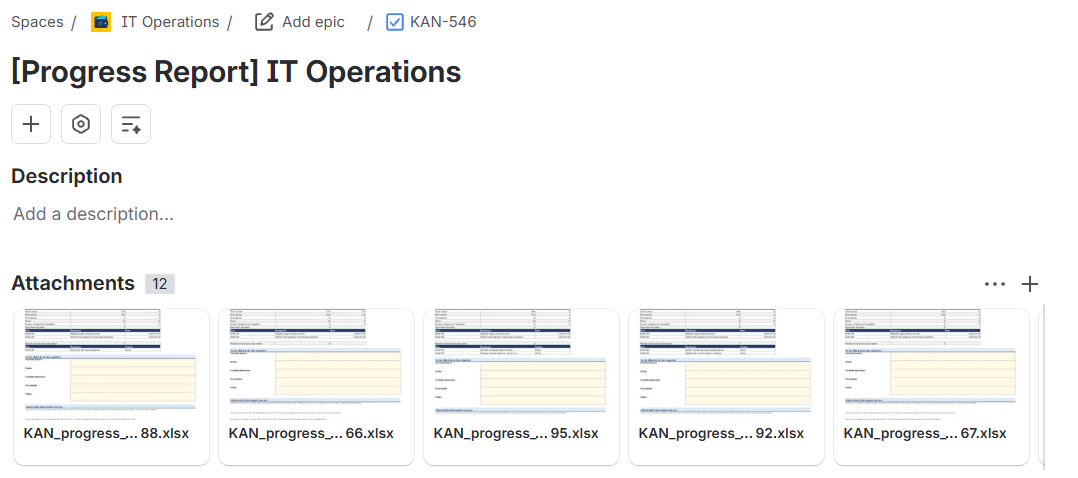
Open that work item and download the .xlsx attachment. The file name is the project key,
_progress_ and a number, for example ABC_progress_1791462501758.xlsx.
When you come back to the page later, it shows when the most recent report was made: The most recent report recorded for this project was generated 3 day(s) ago.
Your first report has nothing to compare with. The "change" column and the list of work items moved to Done on the cover are left blank, and the workbook says so in a note. Blank there does not mean zero. From then on, the comparison is filled in whenever there is an earlier record to compare with.
Old workbooks are tidied up. The app keeps the 12 most recent workbooks it attached for the project — regular and past-period reports together — and removes older ones, up to five per run. It only removes files it attached itself.
4. Reading the workbook
The workbook has four sheets.
| Sheet | What is on it |
|---|---|
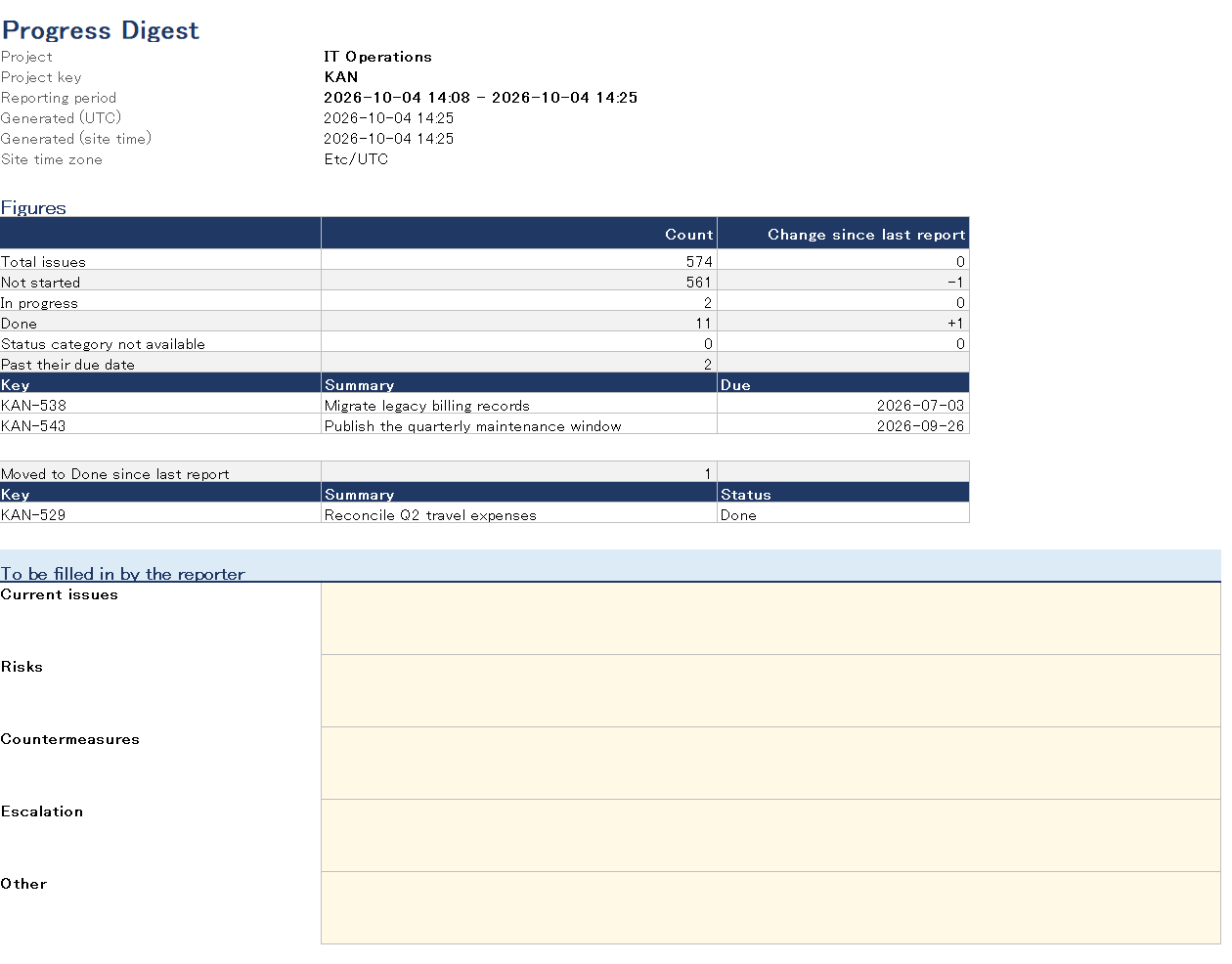
Report Summary |
The cover: project, reporting period, when it was made, the key figures, the work items past their due date and the ones moved to Done, and a block of empty fields (Current issues, Risks, Countermeasures, Escalation, Other) for you to fill in before you send the file on. |
Summary Figures |
Counts by status category — Not started, In progress, Done, and Status category not available — with the total and the change since the last report. |
Period Changes |
What changed between the earlier record and this report, in five lists (below). |
Details |
Every work item in the report: key, summary, type, status, assignee, created, due and updated dates. |
The five lists on Period Changes
| List | A work item is listed when… |
|---|---|
Moved to Done |
its status category was Not started or In progress in the earlier record and is Done now. |
Not in the previous record |
it is in this report but was not in the earlier record. This includes new work items, but also ones moved into the project or ones that have become visible to the person the report is for. |
Due date changed |
its due date differs from the earlier record: Moved to a different date, Due date now set, or Due date no longer set. |
Updated date unchanged |
it is still not done, its status category has not changed, and its updated date is the same UTC day as in the earlier record. Because only the day is compared, an update made later on that same UTC day does not take a work item off this list. |
No longer in the list |
it was in the earlier record but is not in this report — for example it was moved to another project, deleted, or is no longer visible to the person the report is for. Only its ID and a link are shown, because the record does not keep summaries. |
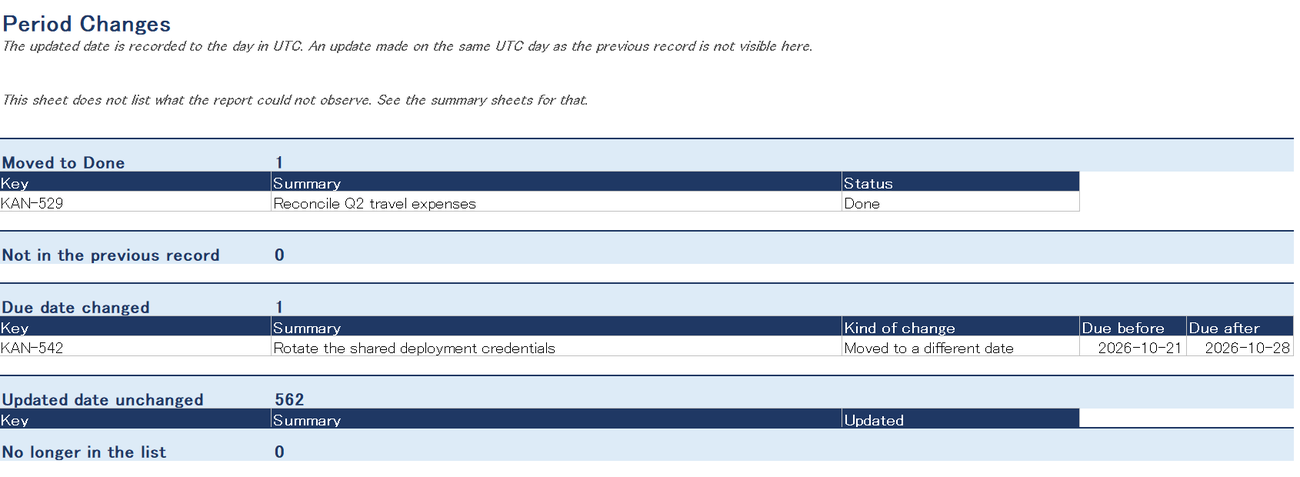
The lists describe what was observed, not why. A work item can appear in more than one list. On your first report the five lists are empty, and a note on the sheet says this does not mean nothing changed.
Things worth knowing
- What "since the last report" compares against. In a project that has never had a scheduled report, it is the most recent record. Once the project has scheduled reports, every regular report — including one you make by hand — compares against the latest completed scheduled record, so the weekly rhythm is not broken by reports made in between.
- Only the net difference is shown. A change that was made and undone between the two records does not appear.
- Dates and times in the workbook are in UTC, except the generated time on the cover, which is also shown in your site's time zone.
- The report sees what its person can see. It is built with the permissions of the person who ran it (or, for a scheduled report, the person the schedule belongs to). Work items hidden from that person by issue-level security are not included, and the cover says this every time under About what this report can see. The earlier record it compares against may have been made for someone else, with their visibility.
- Anyone who can open the report work item can open the workbook. That includes rows they could not see in Jira themselves. If that matters in your project, choose a work item with restricted visibility (section 5).
- Up to 10,000 work items per report, taken oldest first by creation date. If a project has more, the cover says the result was capped.
- If something could not be read, the cover says what, under What happened in this run. That block only appears when there is something to report.
5. Where reports are stored
You normally do not need this. On the first report, the app attaches the workbook to the oldest work
item in the project whose summary starts with [Progress Report], or creates one if there is
none. After that it remembers the work item it used and keeps using it.
Use this setting only if you want the workbooks on a work item you choose — for example an existing "Weekly status" work item your team already watches, or one with restricted visibility.
- To choose one, type its key, for example
ABC-123, and pressSave. You seeSetting saved— New reports for this project will be added to the work item you chose. The work item must be in the same project; if the key is not in the formABC-123, or the app can confirm that the work item is in another project, the setting is not saved and the message says why. A key that does not exist is not caught here — the next report then stops withReport not stored(section 8). - To stop choosing, empty the field and press
Save. You seeSetting saved— New reports for this project will be added to a work item that Progress Digest chooses or creates. Nothing happens at that moment, and in practice new reports keep going to the work item the app last used, because it remembers it. Only if that work item can no longer be found does the app look again for the oldest[Progress Report]work item, or create one.
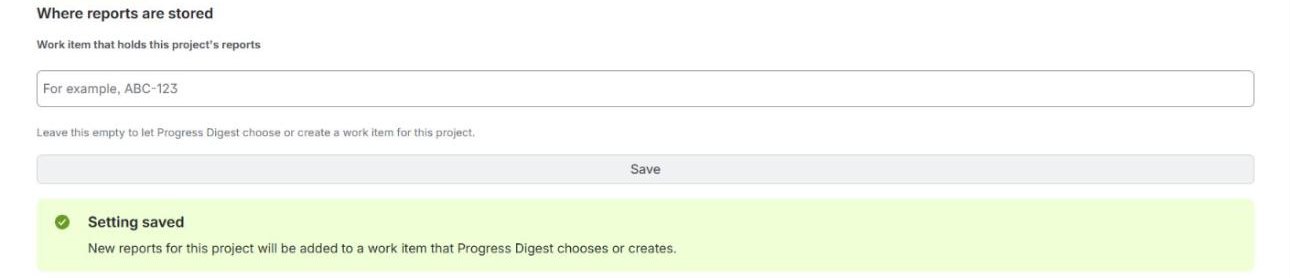
Workbooks already attached stay where they are; only new reports go to a new place. The tidy-up in section 3 still counts them, so older ones are removed over time.
If the project has more than one work item whose summary starts with [Progress Report]
when the app looks, the page says More than one reports holder and names the one it used
(the oldest). This is not an error. Choose one here if you prefer a different one.
6. Scheduled report (weekly)
Turn on the switch under Scheduled report — its label is Generate a report every
week — then choose a Day of the week and an Hour, and press
Save schedule.
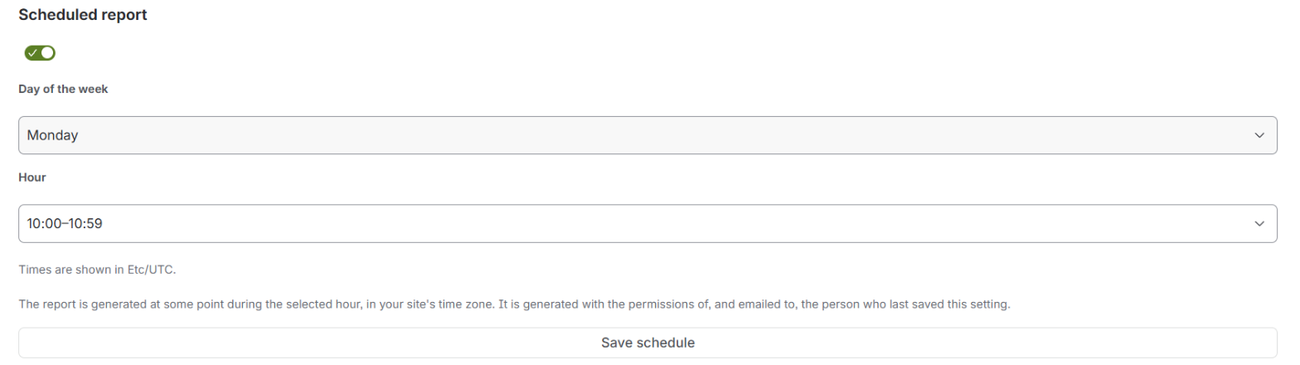
- The time is your Jira site's time zone, which applies to the whole site. It is not the time zone in your personal Jira profile. The page shows which one it is, for example Times are shown in Asia/Tokyo. If it says UTC, choose the hour in UTC.
- The report is made at some point during the hour you chose, not at a fixed minute. If you save during that very hour, the first report can be made within minutes.
- It is made with your permissions and emailed to you — more precisely, the person who last saved the schedule while it was on. The page says Scheduled reports are generated with your permissions and emailed to you.
- The email has the subject Progress Digest weekly report. It is sent only if at least one of your scheduled reports for that hour completed. It lists your scheduled projects for that hour by outcome; completed ones link to the work item that holds the workbook. The workbook itself is not in the email. If you schedule several projects for the same hour, they come in one email.
- No email means no completed report. If you expected one and it did not come, open
the project's page and press
Generate reportto see what the message says (section 8). - While the schedule is on, only the person who saved it or a project administrator can change it. If a project administrator saves it, the administrator becomes the person the reports are made for and emailed to.
- To stop it, turn the switch off and press
Save schedule. You see Scheduled reports are off for this project. A scheduled report that was already queued can still be made. Workbooks already made stay where they are.
You can still use Generate report at any time while a schedule is on.
Section 4 explains what it compares against.
7. Report a past period
Every regular report — by hand or on a schedule — leaves a record: a small snapshot of the project's work items at that moment (status category, due date, assignee and updated day; no summaries). The app keeps the 52 most recent records per project. A past-period report itself does not add a record.
Press Report a past period to open this part, then:
- Choose
From record(the earlier one) andTo record(the later one). Each record is shown by the date and time it was made, newest first, in your site's time zone. - Press
Generate for this period. The run is the same as in section 3, and the workbook goes to the same work item.
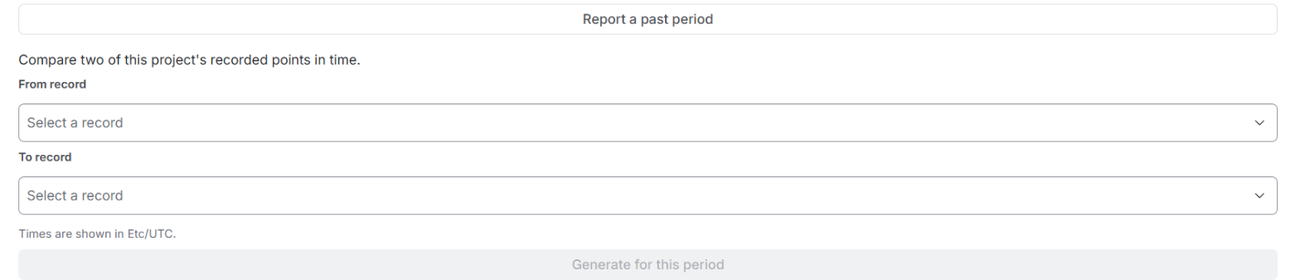
If you choose the same record twice, or a From that is later than To, the page says Select two different records: an earlier one for From and a later one for To. You need at least two records before this part can be used.
How a past-period workbook differs from a regular one
| Regular report | Past-period report | |
|---|---|---|
| Compares | an earlier record → now | From record → To record |
| Headings | Change since last report, Moved to Done since last report, Past their due date | Change over the selected period, Moved to Done during the selected period, Past their due date as at the end of the period |
| Note on the cover | — | This report compares two recorded points in time. … |
| Status column | the status name, such as In Review | the status category — Not started, In progress, Done, or Status category not available — because the record keeps only the category |
| Updated column | date and time | date only, because the record keeps only the day |
| Assignee column | Assignee | Assignee (current) — read from Jira now, because the record does not keep names |
| Key, summary, type, created | read from Jira | read from Jira now; blank for a work item that can no longer be read, and the cover says how many |
The file name has the same form as a regular report. To tell them apart, open the cover: a past-period report has the note above and the period headings.
8. When something looks wrong
| You see | What it means and what to do |
|---|---|
Another run is already in progress |
A report for this project is already being made (perhaps by someone else, or by the schedule). Nothing was started. Try again once it finishes. |
Report not generated — Progress Digest could not confirm a Jira permission
it needs for this project: … |
Either your account does not have the named permission in this project, or Jira could not be reached to check. Try again. If it fails the same way, ask your Jira administrator for that permission (section 9). |
Report not generated — This project is not visible to your Jira account
… |
You cannot browse this project, so no report was made. |
Report not generated — This run was declined. |
Try again later. |
Report not stored |
The work item that holds the reports could not be used. If it is one you chose in section 5, the message names it and says what to do — choose another, or ask your Jira administrator to let the app see it. |
Run did not complete |
The run stopped partway. It may be retried automatically. Come back later and check whether a report appeared. If none did, generate again — but the first one may still arrive, leaving you with two. |
Report attached, but the run did not finish |
The workbook was attached. Do not generate again; you would get a second copy. The page's "most recent report" line may still show an earlier date. |
Still running or Status not available |
The page stopped waiting, but the run may still be going. Do not press
Generate report straight away. Reload the page later and check whether a report
appeared. |
Subscription required |
The app needs an active subscription on this site. No reports are made, by hand or scheduled, until then. Settings and the schedule can still be opened and changed. |
9. Permissions
| To do this | You need, in the project |
|---|---|
| Generate a report, change where reports are stored, turn on a schedule that is off | Browse projects |
Let the app create the [Progress Report] work item the first time |
Create work items |
| Attach the workbook | Create attachments |
| Change a schedule that someone else turned on | Administer projects |
For a scheduled report, these are checked for the person the schedule belongs to. The app never edits the fields or comments of your work items. Its only changes are creating the report work item, attaching workbooks, removing its own older workbooks, and sending the weekly email through Jira.
10. Getting help
Write to contact@myriastrastudio.com, or use the support page. If you can, include the project key and the message the page showed. Please do not send the workbook or work item contents.