User Guide — ReqDrift for Jira
For project administrators and team members · Updated 9 October 2026
ReqDrift watches an Excel requirements table that you keep as an attachment on a Jira issue. Each time you attach a new version, it compares it row by row with the last confirmed version. After you review the changes, it marks the Jira issues that match the changed or removed rows, and the issues linked to them, so the people working on them know to check.
ReqDrift does not decide whether a change needs action; that is up to your team. A mark only says "the requirement behind this issue has changed — please check".
The screenshots on this page come from a test project, Employee
Portal (key EP), whose requirements table is the issue EP-1. Select any
screenshot to see it full size.
1. How it works in one minute
- A project administrator registers the Jira issue that holds the table.
- The first
.xlsxattached to that issue after registering becomes the baseline. - Each later
.xlsxattached there is compared with the last confirmed version. - Someone opens Review, unticks rows that do not matter (a typo fix, for example), and presses Confirm.
- ReqDrift marks the matching issues and the issues linked to them.
- The people on those issues check them and close each mark as Reflected or No impact.
- While marks are open, the person who registered the table gets a weekly email listing them.
Everything happens on the ReqDrift page of the project (open the project, then choose ReqDrift from the project's Apps menu) and in the ReqDrift panel of each issue.
2. Prepare the table
ReqDrift reads only the first sheet of the workbook.
- Row 1 is the header row. Every column is identified by its header text.
- One column holds the requirement ID (REQ ID), such as
PORTAL-001. This is how a row is recognised from one version to the next, so each REQ ID must be unique within the sheet. Rows whose REQ ID is empty or duplicated are not compared; the Review screen counts them. - Empty rows are ignored.
- Cell values are compared exactly as stored, so the number
1and the text1count as different values, and so does an added space. A formula is compared by its last calculated result. Formatting (colour, font, column width) is not compared. - The file must be an
.xlsxof 2 MiB (2,097,152 bytes) or less.
How rows find their issues
A row is matched to issues in the table's project in up to three ways. You choose which ones when you register.
| Way | A row matches an issue when… |
|---|---|
| Match summary (on by default) | the issue summary starts with the REQ ID (PORTAL-001 Login page) or with the
REQ ID in brackets ([PORTAL-001] Login page). PORTAL-0010 does not
match PORTAL-001. |
| REQ ID field (optional) | a Jira custom field you name holds exactly the REQ ID. Text, number, select, labels and multi-select fields are supported. |
| Key column (optional) | a column of the table holds Jira issue keys (KAN-12, or several keys in one
cell). |
- If a row matches several issues, all of them are marked.
- If the key column and the summary or field disagree, the row is not marked, because ReqDrift cannot tell which one is right.
- A row that matches no issue is not marked.
- Issues in other projects are found only when the key column names them.
From each matched issue, ReqDrift follows issue links one step (and parent / child), for the link types you keep on in Settings. Linked issues in other projects are included.
3. Register a table
You need the Administer Projects permission in the project.
- Create (or pick) a Jira issue in the project that will hold the table. Attach nothing yet.
- Open the project's ReqDrift page and go to Register a table.
- Fill in:
- Issue key — the issue that holds the table, for example
KAN-1. - REQ ID column header — the header text of the REQ ID column, exactly as in row 1.
- Key column header (optional) — the header of a column of issue keys.
- REQ ID field id (optional) — for example
customfield_10050. - Match summary — leave it on unless you match only by key column or field.
- Issue key — the issue that holds the table, for example
- Press Register. You see "Registered. The next .xlsx attached to this issue becomes the baseline."
- Attach the table as an
.xlsxto that issue. This first version is the baseline; nothing is marked yet.
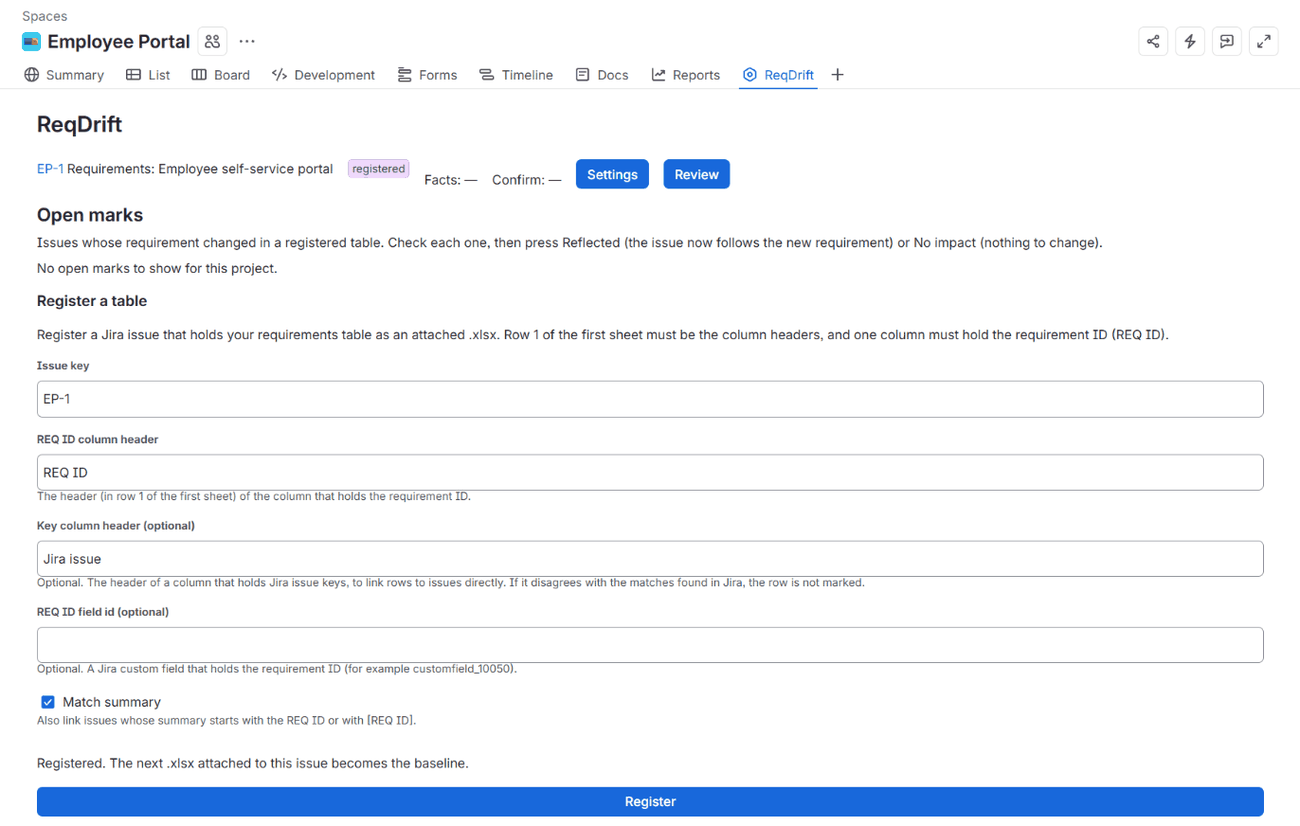
EP-1. In this project
ReqDrift is a tab across the top; where it appears in yours is decided by Jira.At least one way of matching must be on, or registering is refused.
Registering an issue again resets the baseline: the next .xlsx becomes
the new baseline, and changes since the last confirmed version are not shown. ReqDrift warns you and
asks you to press Register again (resets the baseline) before it does this.
4. Attach a new version
When the requirements change, attach the new .xlsx to the same issue. Every
.xlsx attached to that issue is read as a new version, whatever its name — so
attach only the requirements table there. You do not need to delete the old file.
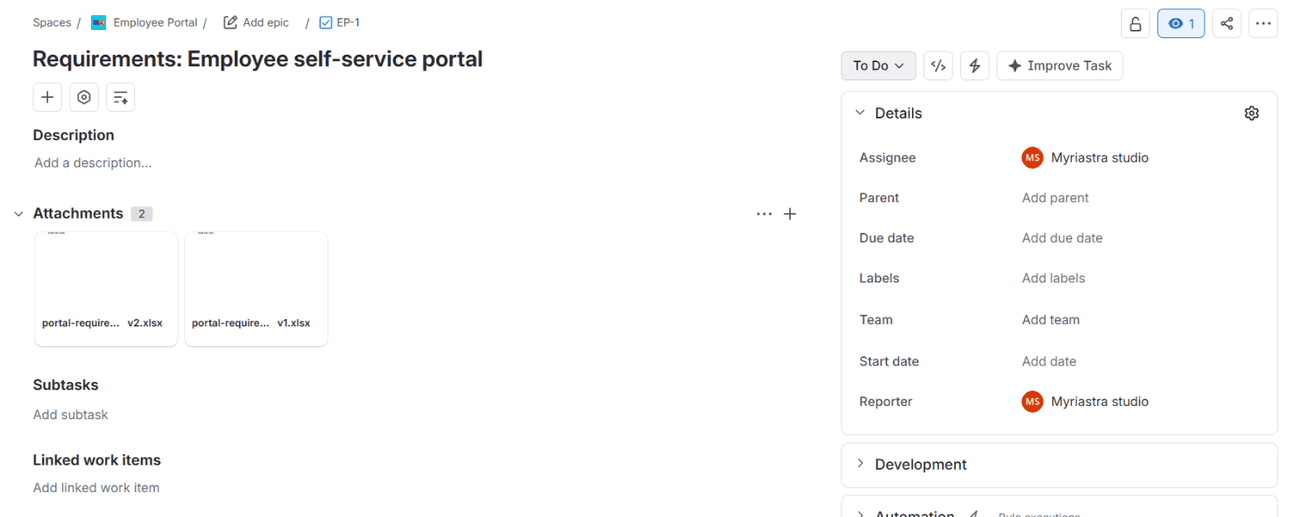
The new version is read shortly after it is attached; there is no fixed time. The table's row on the ReqDrift page shows where it is:
| Status | Meaning |
|---|---|
registered | Registered; no version has been read yet. |
retrying | Reading failed once and will be tried again. |
baseline | This version is the baseline. The next one is compared with it. |
diffed | Compared. Open Review. |
superseded | A newer version arrived before this one was finished. |
req_id_missing | The REQ ID header was not found in row 1 of the first
sheet. Check it in Settings, then attach the .xlsx again. |
needs_settings | No REQ ID column is set. Set it in Settings, then attach
the .xlsx again. |
too_large | The file is larger than 2 MiB and was not read. |
size_unknown | The size of the file could not be determined, so it was not read. |
prev_unreadable | The previous version could not be read, so this version became the new baseline without a comparison. |
gave_up | The version could not be read after several tries. Attach the
.xlsx again. |
Next to it, Facts shows whether ReqDrift has finished looking up the matching issues
in Jira (collecting, then ready), and Confirm shows what
happened after you confirmed.
5. Review and Confirm
Press Review on the table's row. You see each row that changed between the last confirmed version and this one:
- Changed and Removed rows that match an issue have a checkbox, ticked by default, and a line such as Will mark: KAN-569 (direct), KAN-575 (linked via Relates).
- Added rows are listed but never marked. A new row whose issue does not exist yet says "New requirement. No Jira issue has this REQ ID yet, so nothing is marked."
- Rows that cannot be marked say why (no matching issue, matches disagree, or a key in the key column does not exist).
- Only the watched columns count as a change (see Settings). A change in an unwatched column does not appear.
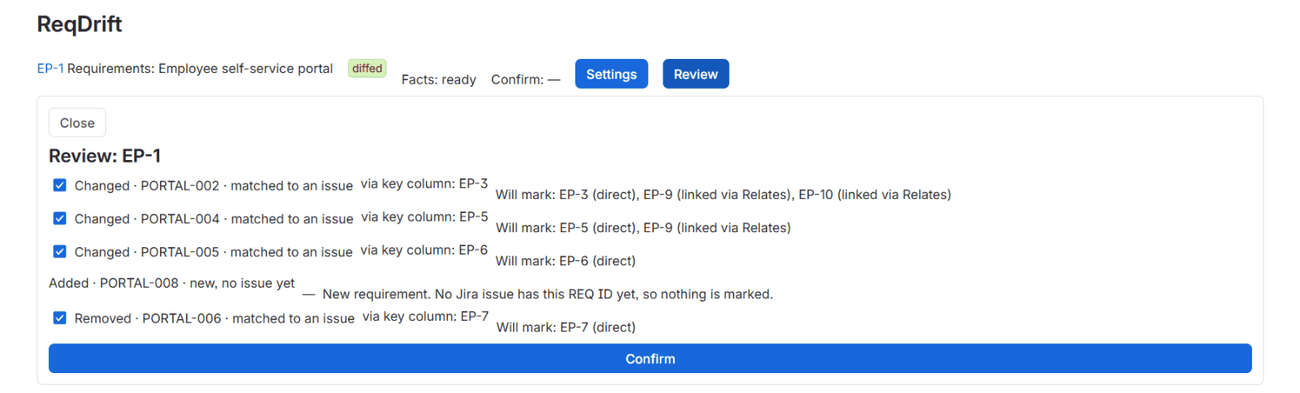
Untick any row whose change does not affect the work, such as a typo fix. Then press Confirm. To confirm you need the Edit Issues permission on the table's issue. You see "Confirmed. Marks are being applied." and, a moment later, "Marks are applied." Use Refresh to see the latest state.
If ReqDrift could not write to some issues, the Review says so (for example "Not written to Jira: 1 without permission."). The marks themselves are still recorded in ReqDrift.
If the Jira lookup was incomplete (for example because some issues are protected by issue security), the Review explains why and offers Acknowledge instead of Confirm. Acknowledging marks nothing; the next version is compared with this one.
If a newer version arrives before you confirm, review the newer one: it is compared with the last confirmed version, so no change is lost.
6. Marks
A marked issue gets three things:
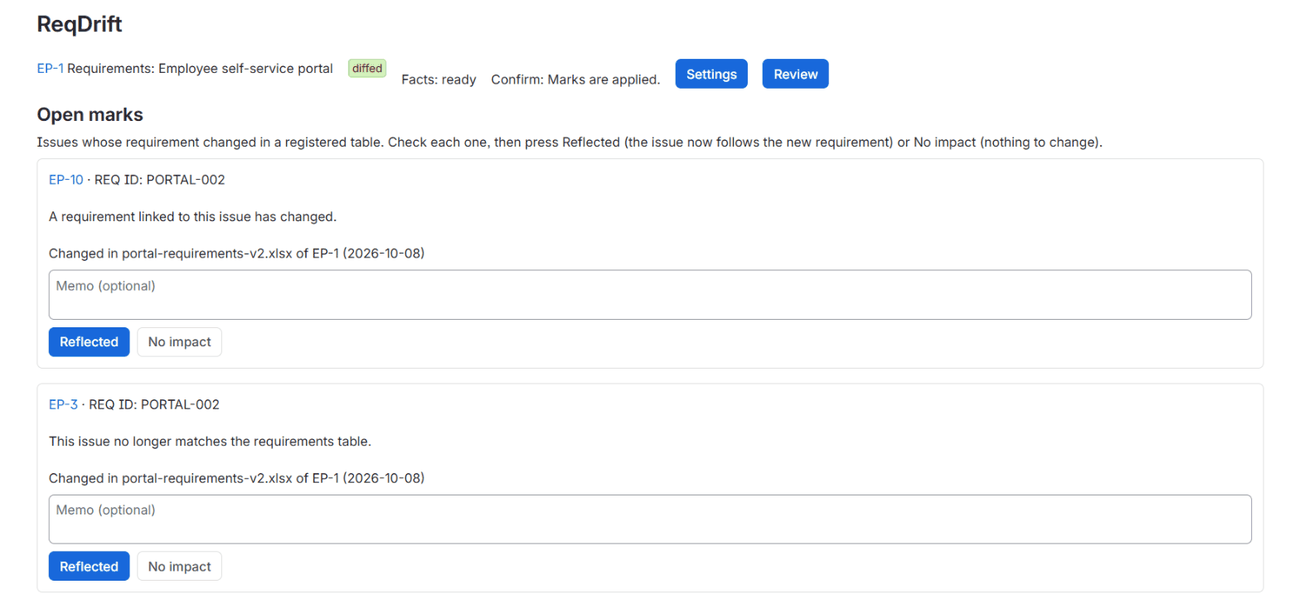
- an entry in the ReqDrift panel of the issue, with the REQ ID and either "This issue no longer matches the requirements table." (matched directly) or "A requirement linked to this issue has changed." (reached through a link), plus which version of which table it changed in;
- the label
reqdrift-open; - one comment for each confirmed change, naming the requirement.
To open the panel, click the app icon (View app actions) under the issue title and choose ReqDrift.
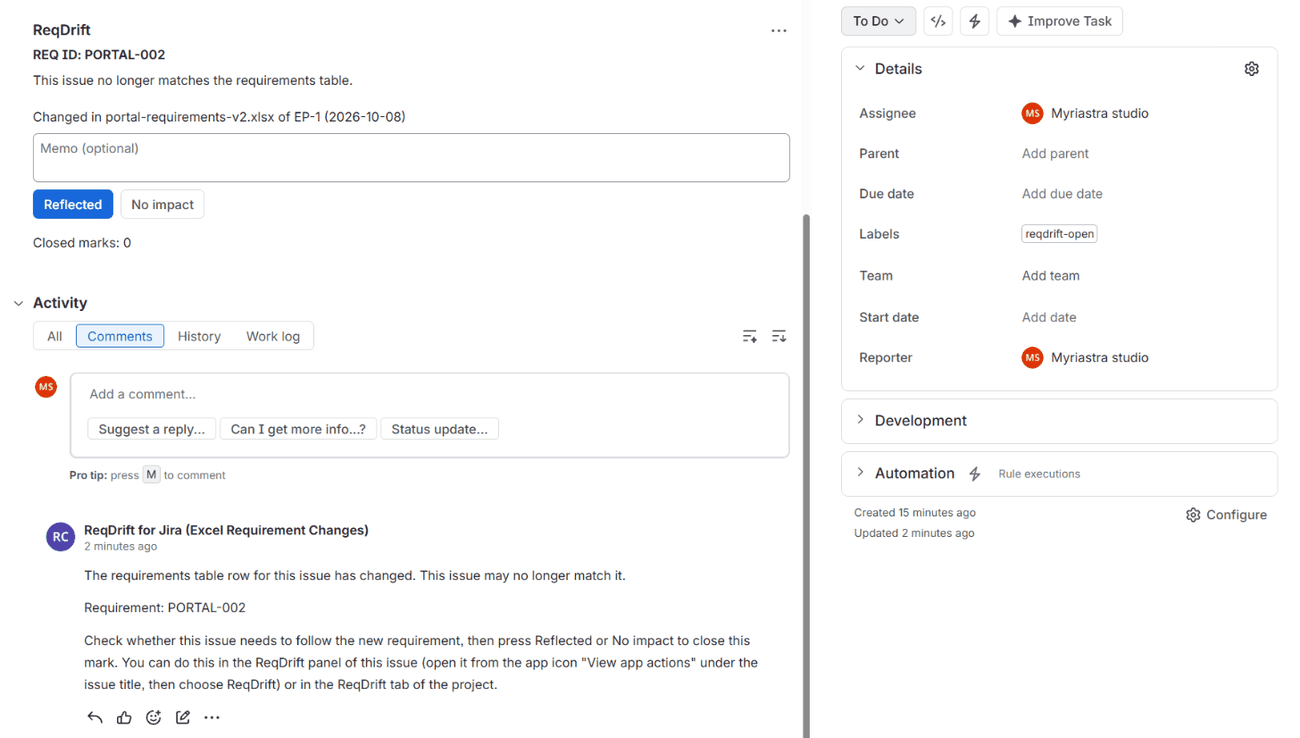
reqdrift-open label and the comment.The label and comment are written only when Write to Jira is on for the table (it is on by default). When it is off, marks are shown only in ReqDrift.
Marks are recorded by the app itself, so a linked issue in another project can be marked in ReqDrift even if the person who confirmed cannot open it. The label and comment are written to an issue only if the person who confirmed has the Edit Issues and Add Comments permissions on that issue, checked when the marks are applied. Otherwise the mark stays only in ReqDrift, and the result counts the issue as without permission. Lists and emails show only issues the reader can see; the rest are counted, not named.
If the same requirement changes again while its mark is open, the change is added to the same mark. If it changes after the mark was closed, the issue gets a new mark.
7. Close a mark
Check whether the issue needs to follow the new requirement, then close the mark:
- Reflected — the issue now follows the new requirement.
- No impact — nothing needs to change.
You can add a memo (optional, up to 1,000 characters). You need the Edit Issues permission on the marked issue. You can close a mark in the issue's ReqDrift panel, or in Open marks on the project's ReqDrift page, which lists every open mark in the project that you can see.
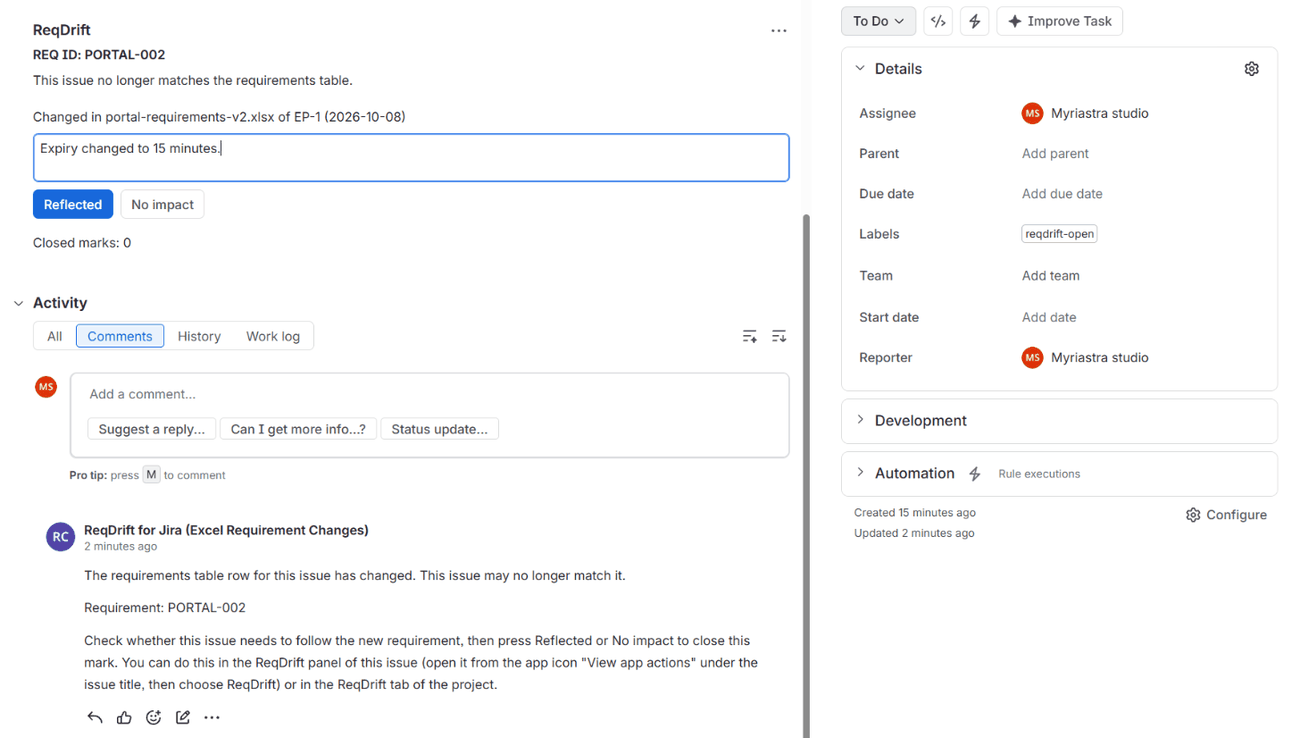
The close is applied shortly after you press the button ("Close requested. It will be applied
shortly."). When an issue has no open marks left, the reqdrift-open label is
removed.
ReqDrift keeps a record of each closed mark. The panel shows Closed marks: N and the Last decision — the REQ ID, Reflected or No impact, the date, the memo, and who decided.
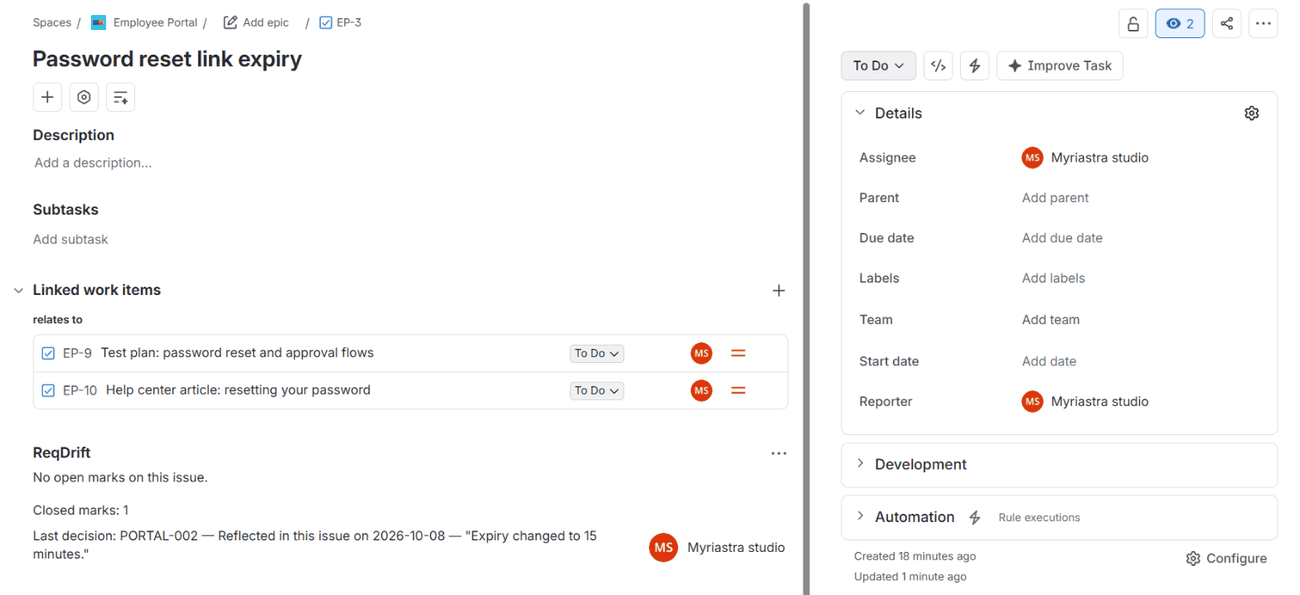
8. Settings
Press Settings on a table's row. Anyone who can see the table's issue can view them; changing them needs the Administer Projects permission. Changes apply from the next version of the table.
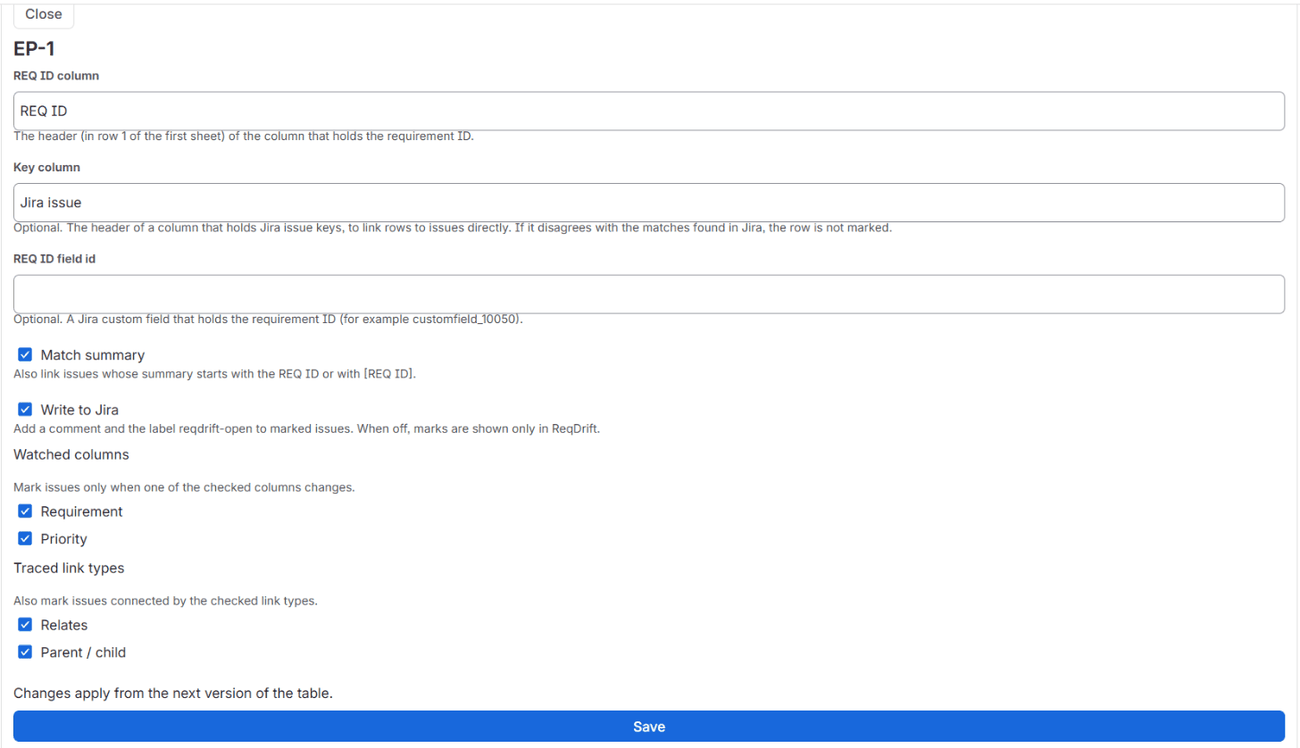
The settings fall into three groups. Only the first one has to be set; the defaults of the others watch everything.
Required: which column is the REQ ID
| Setting | What it does |
|---|---|
| REQ ID column | The header text of the column that holds the requirement ID. It names a column, not a row: the column can be anywhere and its header can be any text, as long as the header is in row 1. |
For example, with this table you would enter Req No.:
| A | B | C | D | |
|---|---|---|---|---|
| 1 | Req No. | Title | Priority | Jira |
| 2 | PORTAL-001 | Login page | High | KAN-3 |
| 3 | PORTAL-002 | Password expiry | Medium | KAN-5 |
Matching
These are the three ways described in How rows find their issues (section 2). At least one must be on.
| Setting | What it does |
|---|---|
| Match summary | Match issues whose summary starts with the REQ ID or with [REQ ID]. On by default. |
| REQ ID field id | Optional. A Jira custom field that holds the requirement ID. |
| Key column | Optional. The header of a column of Jira issue keys (Jira in the example above).
If it disagrees with the matches found in Jira, the row is not marked. |
What to mark (you can leave these as they are)
By default every column except the REQ ID column and the key column is watched, every link type is traced, and marks are written to Jira. Change these only when you want less.
| Setting | What it does |
|---|---|
| Watched columns | Mark issues only when one of the checked columns changes. Untick a column whose changes do not matter (a "Last edited" column, for example). New columns are watched until you untick them. The REQ ID column and the key column are not in this list: they are used to find rows and issues, not compared as changes. |
| Traced link types | Also mark issues connected by the checked link types (including Parent / child). New link types are traced until you untick them. |
| Write to Jira | Add a comment and the label reqdrift-open to marked issues. When off, marks are
shown only in ReqDrift. |
Renaming a column header
A column is recognised by its header text, so renaming a header in the workbook is seen as one column removed and another added:
- Another column renamed: changes in that column are not compared in the version where the header changed.
- REQ ID column renamed: the version where the header changed is not compared at
all. It shows
req_id_missingand becomes the new baseline, even if you update REQ ID column in Settings first.
To lose nothing, rename headers in a version that changes nothing else, then update Settings to match.
9. The weekly email
While a table has open marks, the person who registered the table receives an email about it at most once a week. It lists up to 20 open marks — the issue, the REQ ID, how it was reached and how many changes it has — with a link to each issue. Issues the recipient cannot see are counted, not named.
There is no fixed day or time. No email is sent in a week when the table has no open marks, and if sending fails, that week's email is not retried. The email is sent through Jira's own notification service.
10. License
If the ReqDrift license for your site is inactive, existing marks stay visible, but new versions are not read, changes cannot be saved, and no weekly email is sent. The ReqDrift page and panel say so. Ask your site admin to renew the license.
11. Limits worth knowing
- Attach only the requirements table to the table's issue. Every
.xlsxattached there is read as a new version. - Rename column headers in a version that changes nothing else (see Renaming a column header).
- Tables larger than 2 MiB (2,097,152 bytes) are not compared.
- Sub-tasks or child issues in other projects are found only when the key column names them.
- When some issues are protected by issue security, the facts for a row may be incomplete. The Review screen shows a warning when this is detected.
- The install screen asks for write access even if you turn off Write to Jira for every table, because Forge fixes an app's access when it is installed.
- Each new version is read shortly after it is attached, and the weekly email goes out at most once a week. Neither has a fixed time.
12. Getting help
Email contact@myriastrastudio.com. Please do not send your workbook or the contents of your issues; describe what you see on the screen instead. What the app reads, writes and stores is described in the Privacy and Security Policy.